Content Preview System: Testing and Sharing Your Work
Previewing pages in Pack's customizer is a vital step to ensure your page looks and functions as intended before you go live. Review and test your pages across different devices and screen sizes, and share previews with your team.
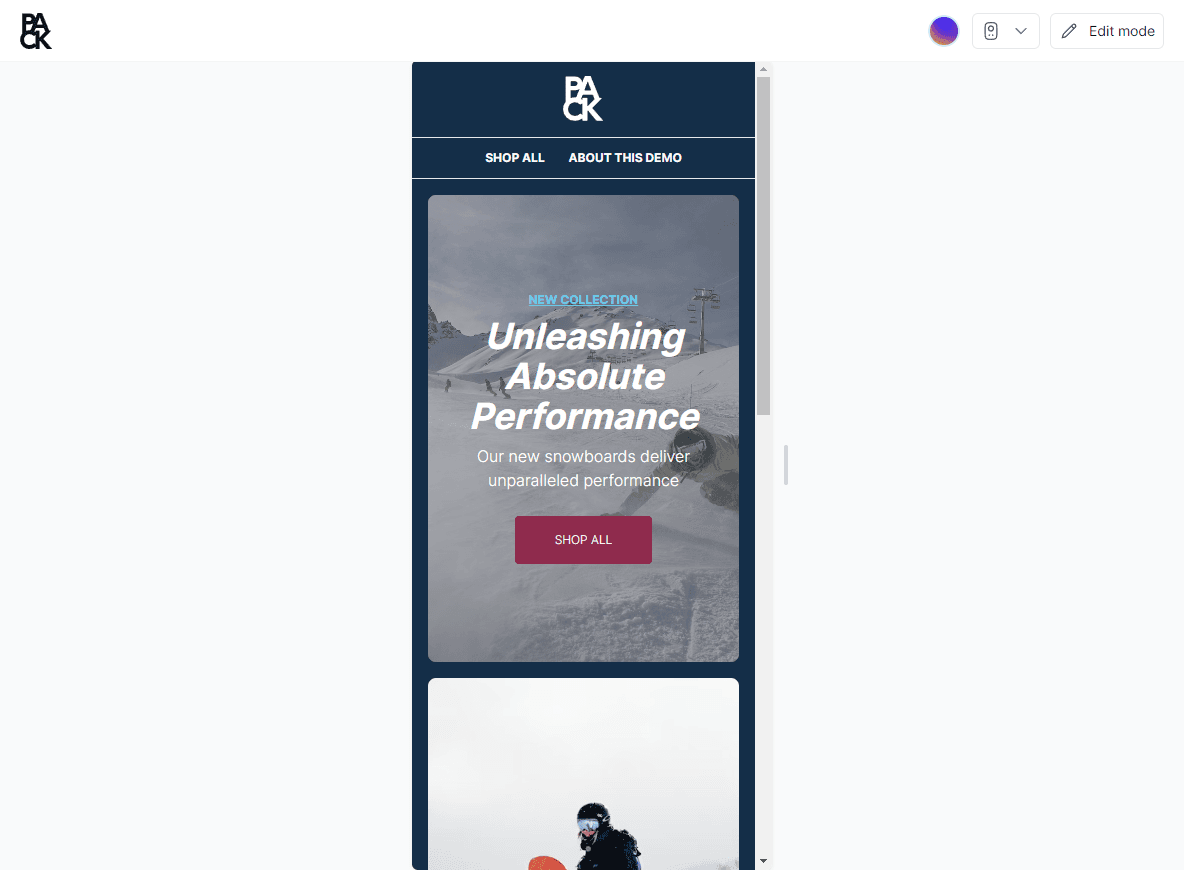
Previewing on Different Devices
The responsive view menu above the storefront preview controls the preview size.
- Open the Customizer.
- Click the device icon above the storefront preview to open Responsive view.
- Choose a size:
- Desktop fills the available width.
- Tablet (768px) and Mobile (360px) use a standard width. Hover over either one to pick a specific device from Tablet presets (iPad Mini, iPad Air, iPad Pro) or Phone presets (such as iPhone SE, iPhone 14 Pro Max, Pixel 7, and Samsung Galaxy models). Presets set both the width and height of the preview.
You can also drag the edge of the preview to any width. The menu then shows the size as Custom.
Full Screen Preview
To hide the Customizer's editing interface and get a clean view of the page, open Responsive view and select Enter full screen. Select Exit full screen to go back to editing.
Share a Preview Link
You can share unpublished work with anyone for feedback or approval, even if they don't have a Pack account.
- In the Customizer toolbar, click Share.
- Select Copy public link to copy a link to the current page. Anyone with the link can view your storefront and draft content. The link expires in 2 days. It uses the content environment you're editing, but doesn't include a content release, locale, or A/B test.
Manage Preview Links is an experimental feature. To use it, open Settings, and under Experimental features turn on Enhanced Preview Link Share Management. It's turned on per user, so each teammate turns it on for themselves, and the Experimental features card only appears for storefronts hosted on Oxygen. Once it's on, Manage Preview Links replaces Copy public link in the Share menu. It opens a dialog where you can create named links with more control:
- Permission level: make the link public, or require a password to view it.
- Link expiration: choose how long the link works, or set a custom expiry date and time.
- Preview content context: choose what the link shows, including the Content Environment, Locale, and Content Release. Pick a Content Release to share a preview of everything in that release, or leave it on Live content. If you aren't previewing a release, you can also pick an AB Test and Test Variant.
Preview content context options require @pack/hydrogen v3.0.1 or later.
Storefronts on older versions ignore them.
The Storefront Preview Toolbar
When someone opens a preview link, or views the storefront in preview mode outside the Customizer, a small preview pill appears on the page. It requires @pack/react 4.5.0 or later. Older versions show a simpler preview banner.
- Drag the pill to dock it on any edge of the screen. The position is remembered in that browser.
- Click the pill to open the preview details panel. It shows the preview link name, content release, content environment, locale, A/B test, and any drafts being previewed. The panel is read-only.
- Hide tucks the pill away until the page is reloaded or you navigate to another page.
- Exit preview asks for confirmation, then turns off preview mode. If exiting fails, the panel shows an error so you can try again.
The toolbar doesn't appear inside the Customizer, and production pages with preview mode off don't load it.
Viewing Live Page Version
The Customizer preview does not reflect the live version of your page. To view the current live version, follow these steps:
The shared link is generated for your primary content environment. Append
&environment=YOUR_CE_HANDLE to the URL to view other content environments.
- In the Customizer, find the page's full URL above your page preview that appears in the preview URL dropdown menu.
- Copy and paste this URL into an Incognito browser window.
- This view reflects the page without cached data, showing only changes that are deployed and published.