Localization
Reaching customers in their own language and currency can have a huge impact on your conversion rates and customer loyalty. With Pack's localization tools for your Hydrogen storefront, you'll be able to tailor your content, pricing, and promotions to each market—boosting engagement and growing your sales.
Pack Admin
Locales
Navigate to Settings > Localization in the Admin to create, disable, or remove locales, and to set your store’s primary locale.
Primary Locale
- By default, the primary locale is
en-US. Any content created before localization was enabled inherits this locale.
Fallback Locales
When a visitor requests content in a specific locale and no translation exists, Pack automatically falls back through a chain:
- Requested locale — The exact locale requested
- Fallback locale — A configured fallback (e.g.,
fr-CAcan fall back tofr-FR) - Primary locale — Your store's primary locale (usually
en-US)
This means you don't need to translate every piece of content for every locale—untranslated content gracefully falls back to the next available language.
Setting a Fallback Locale
When creating a locale, you can optionally set a fallback locale. For example, setting French Canadian (fr-CA) to fall back to French (fr-FR) means any untranslated fr-CA content will display the fr-FR version before falling back to your primary locale.
Creating Locales
- Click Add Locale in the top-right.
- In the modal, choose your Language and Region, then click Create.
Deleting Locales
To remove a locale, click the delete icon next to it in the locales list.
When you delete a locale:
- All content in that locale is removed
- Products, collections, and site settings are automatically copied to your primary locale (if they don't already exist there) to prevent data loss
- The deletion runs in the background and may take a few moments for stores with lots of content
Note: You cannot delete your primary locale or a locale that is used as a fallback by another locale.
Pack Customizer
Switching Locales
Use the locale dropdown in the Customizer toolbar (which defaults to your primary locale) to switch between languages.

Selecting a locale from that list will load your storefront content for that region.

Translating Content
When you select a non-primary locale, each section shows a badge indicating its translation status:
- Grey badge = using primary-locale fallback
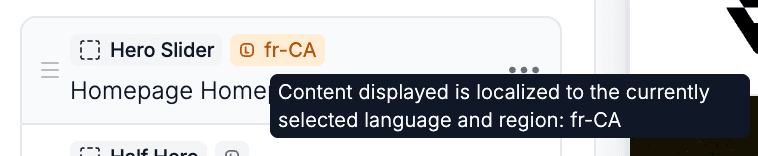
- Orange badge = translation exists

Hover over the badge to see detailed locale information and helpful tooltips.

Already translated? You’ll see an orange badge and locale details on hover.
To add or update a translation, switch to your target locale, edit the content, and save. The badge will automatically update from grey to orange to confirm your new translation.
Supported Content Types
The following content types support localization:
- Pages
- Articles
- Blogs
- Products
- Collections
- Sections
- Templates
- Site Settings
Each of these can be translated independently per locale.