Media Asset Management: Uploading and Organizing Images
Pack’s Media Manager simplifies media handling, offering seamless integration with Shopify.
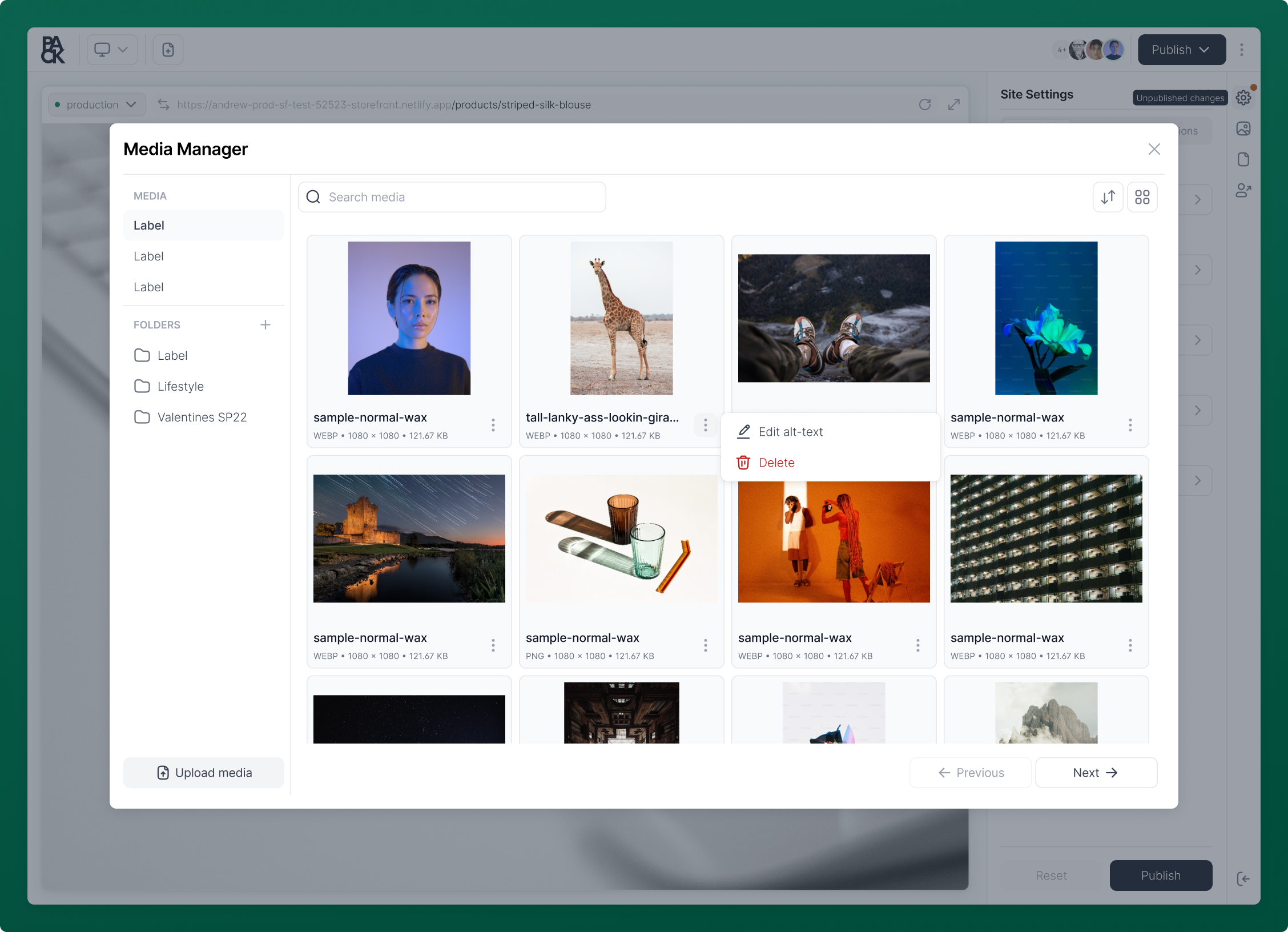
Upload Media
- Access the Media Manager via Customizer.
- Drop files onto the upload area, or click it to select files. The maximum file size is 20 MB.
- Once uploaded, files appear in the list and are accessible in Shopify under Content > Files.
While files upload, each one shows as an Uploading... placeholder in the grid. If you're viewing a folder, new uploads go into that folder.
When an upload fails
If some files in a batch fail, Pack shows a Some files failed to upload. warning that lists the failed file names and the reason for each. Files that uploaded successfully stay in the library. If every file fails, you'll see Failed to upload files. instead. Fix the issue, such as a file that's too large, and upload the failed files again.
Videos
Videos preview directly in the grid, so you can play a clip to check it before inserting it. Shopify processes videos after upload, so a new video can take a moment before its preview is available.
Organize Media in Folders
Folders help you keep a large media library manageable. They're listed under Folders in the Media Manager sidebar, and All media shows every file regardless of folder.
- Create a folder: Use the add button next to Folders in the sidebar and enter a name.
- Create a subfolder: Open a folder's menu (...) and select Create subfolder. Folders can be nested up to three levels deep.
- Rename a folder: Open the folder's menu and select Rename folder.
- Move a folder: Open the folder's menu, select Move folder, and choose a new parent folder or Root level. You can also drag folders in the sidebar.
- Delete a folder: Open the folder's menu and select Delete folder. This also deletes its subfolders, but the media files inside are not deleted.
A breadcrumb above the media grid shows where you are in the folder tree. Click any part of it to go back up.
Move files between folders
- Open the menu (...) on a media file.
- Select Move to a folder (or Move to another folder if the file is already in one).
- Browse to the destination. Folders with subfolders can be opened to drill down, and All folders takes you back to the top.
- Click Move here.
To take a file out of its folder, select Remove from folder in the same menu. You can also drag files, including several selected at once, onto a folder in the sidebar.
Find Media
Use Search media to find files by name. The filter menu narrows results by File type and File size, and the sort menu changes the order of results.
Edit Media
Be cautious: Deleting media is irreversible and will remove it from Shopify as well.
Open the menu (...) on a media file to Edit alt-text or Delete media. Alt text changes sync to Shopify.