Content Releases
Content Releases let your team prepare a group of content changes and publish them all at once. They are useful for product launches, campaign updates, seasonal merchandising, localization updates, homepage refreshes, or any project where several content changes need to go live together.
Content Releases replace the previous Page Drafts and Storefront Settings Drafts workflows. Instead of making separate drafts for one page or one settings area, you can create one release and add all related edits to it.
For example, a holiday launch release might include:
- A new homepage hero
- Updated product page content
- A reusable promotional section
- Updated navigation or announcement bar settings
Everything in the release can be reviewed together and published together.
What changes when you use a release
When you select a release in the Customizer, your edits are saved to that release instead of going live immediately.
Only the content you edit becomes part of the release. Everything else continues to use the current live content.
For example, if your release only changes the homepage and two product pages, then publishing the release only updates those items. Pages that were not edited in the release are left alone.
Create a release
The fastest way to create a release is from the Customizer. Open the perspective picker in the toolbar to switch between live content, releases, and tests.
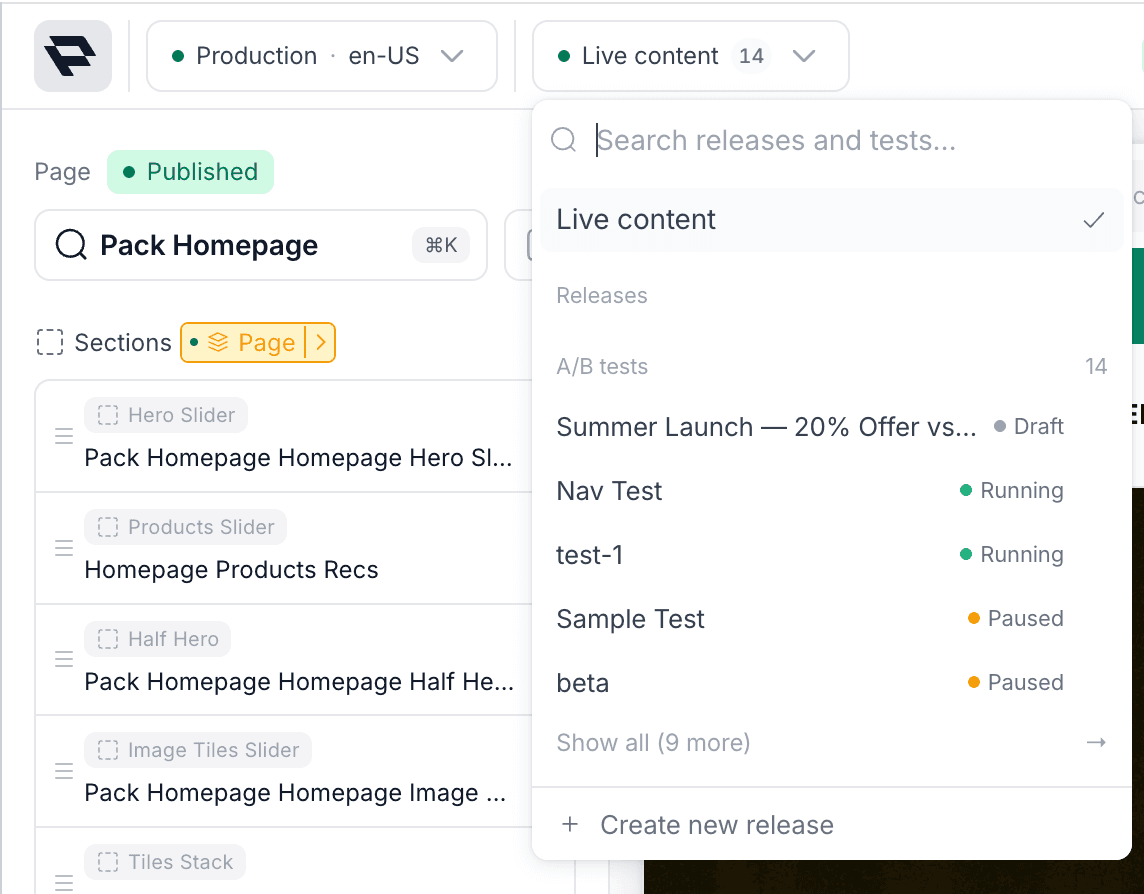
- Open the Customizer.
- Open the perspective picker in the toolbar.
- Select Create new release at the bottom of the picker.
- Enter a release name.
- Optionally add a description so your team knows what the release is for.
- Save the release.
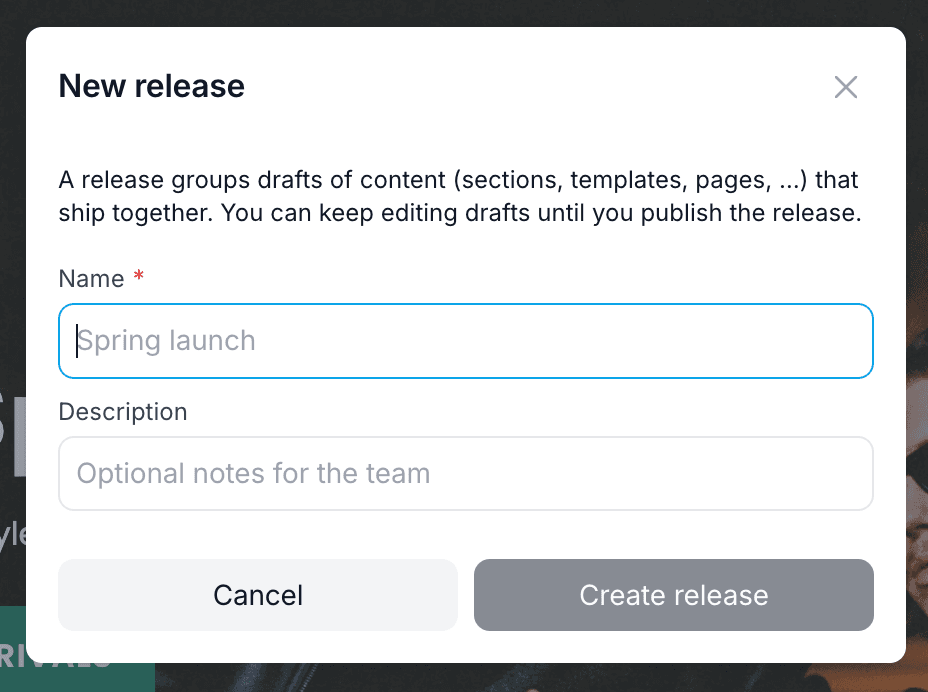
Use clear release names like “Holiday Homepage Launch,” “Spring Campaign,” or “BFCM Product Updates” so your team can quickly understand what each release contains.
Edit content in a release
After you create or select a release, continue editing in the Customizer as usual.
- Open the Customizer.
- Open the perspective picker in the toolbar.
- Select the release you want to work in.
- Make your content changes.
- Click Save to release.
While a release is selected, saved changes are kept in that release. They do not update live content until the release is published.
You can include changes to:
- Pages
- Articles and blogs
- Product and collection pages
- Sections
- Templates
- Storefront settings
If a piece of content is not edited in the release, publishing the release will not change it.
The first time you save a piece of content to a release, Pack asks you to confirm with Add and save. Once that content has its own release version, later live edits to it won't merge into the release automatically, which can lead to conflicts.
See where release changes appear
While a release is selected, the Customizer toolbar shows a summary of what the release touches, such as "3 pages in release." Open it to see the Changes list:
- Each page affected by the release, with its number of changes. The page you're viewing is marked Current.
- Pages affected indirectly. A change to a shared section or template lists every page that uses it, so you can check each place it will show up.
- Other changed content that doesn't map to a single page, such as storefront settings.
- A Needs review status on pages with conflicts.
Select a page to open it in the Customizer. Use Filter pages to narrow a long list.
Move unscheduled page edits into a release
If you already made page edits that are not scheduled and not part of a release, you can move those edits into a new release from the Customizer save menu.
- Open the page with the unscheduled edits in the Customizer.
- Open the save button dropdown.
- Choose the option to move the page changes into a release.
- Enter a release name and optional description.
- Save.
Pack creates the release, moves the page edits into it, and switches you into that release so you can keep reviewing or editing.
Find and manage releases in Pack Admin
Open Releases in Pack Admin to see every release for the storefront, with its name, handle, status, and when it was last updated.
- Filter by status with the All, Open, Published, and Archived tabs.
- Search by name, handle, or description.
- Sort by clicking the Name or Last updated column headers.
Your filter, search, and sort are kept in the page URL, so they survive a reload and you can share a filtered view with your team.
Rename a release
- Open the actions menu (⋮) for the release.
- Select Edit details…
- Update the Name or Description, then click Save.
Only open releases can be edited.
Review a release before publishing
Before you publish, review the release to confirm what will go live.
In Releases, click a release or select View drafts & conflicts from its actions menu to open the release details. The details show:
- The release name, description, status, and scheduled publish time, if any
- Each draft in the release, the type of content it changes, and who last updated it
- Drafts with conflicts, grouped under Needs review
For each draft you can:
- Expand the row to compare the release version with what is live now (On live now and After publishing).
- Click the View in admin icon to open that content in Pack Admin in a new tab.
- Click Remove to take it out of the release (see below).
For an open release, click Edit in Customizer to open the Customizer with that release already selected.
You can also review release details from the Customizer by selecting the release and clicking Review release.
Remove an item from a release
If a change shouldn't go out with the release, remove it instead of editing it back by hand. Removing a draft discards the release's changes to that content, and the release uses the live version instead.
- Open the release details from Releases, or open the publish dialog.
- Find the draft and click Remove.
- Confirm with Remove from release.
Sections and templates are separate release items. If you remove a page, remove any section or template drafts it depends on too if that content should fully match live.
If you remove every change from a scheduled release, Pack also removes its schedule.
Understand conflicts and overwrites
A conflict happens when content in a release and the live version of that same content have both changed.
This can happen when anyone publishes changes directly to live content while a release is being prepared. It does not matter whether the live change was made by another editor or by the same person who created the release. Live changes are not automatically added to existing releases.
Conflicts can also happen when two releases include changes to the same page, section, template, or settings area.
When Pack finds a conflict, the publish dialog shows what changed so you can decide what to do next.
When conflicts exist, you can:
- Cancel publishing to avoid changing live content.
- Publish anyway if the release should replace the current live content.
Publishing anyway can overwrite newer live changes. Review conflicts carefully before continuing.
The important thing to know is that Pack publishes the saved release version of the content item. If the release includes the homepage, publishing that release updates the homepage to match what is saved in the release. It does not only publish the single field you remember editing.
Storefront settings are the exception. A release only stores the settings you changed, and publishing applies those on top of the current live settings. Settings that were edited on live but not in the release are kept.
Common publishing scenarios
Only your release changed the content. You update the homepage hero in a release, and no one changes the live homepage before launch. When you publish, the release version of the homepage hero goes live. Other pages and settings are unchanged.
Someone changed unrelated live content. You update the homepage hero in a release, and another editor updates a product page directly on live. Publishing your release does not change that product page, because it was not part of the release.
Someone changed the same live content. You update the homepage hero headline in a release, and then someone updates the live homepage hero image before your release launches. That person could be another editor, or it could be you making a separate live change. Pack warns you that the live homepage changed. If you publish anyway, the homepage goes live as it is saved in your release, which can overwrite the newer live image change.
Two releases changed the same content. Release A and Release B both include homepage hero changes. If Release A goes live first, Release B may not include Release A's changes. Publishing Release B later can replace the hero with the version saved in Release B.
When multiple editors or releases touch the same content, review the conflicts before choosing Publish anyway.
Clear a conflict after review
If you've reviewed the newer live content and the release's version is still correct, you can rebase the draft onto the current live version so it no longer shows as a conflict. Rebasing is available through the Content Management API (contentReleaseRebaseDraft) and the Pack MCP. There isn't a button for it in Pack Admin or the Customizer.
Only rebase after checking the live changes. Once a draft is rebased, publishing the release replaces the live version without flagging it.
Publish a release
Publish a release when the content has been reviewed and is ready to go live.
- Open Releases in Pack Admin, or select the release in the Customizer.
- Review the included drafts.
- Click Publish.
- Review the publish confirmation.
- If conflicts are shown, either cancel or choose Publish anyway.
- Confirm the publish.
After publishing, Pack updates the live content included in the release and triggers the normal storefront update process.
Schedule a release
Instead of publishing right away, you can schedule a release to publish automatically at a future date and time. In the publish dialog, choose Schedule for later under When to publish, pick a date, time, and timezone, and click Schedule publish. You can also select Schedule publish… from the release's actions menu in Releases.
For details on editing or removing a release schedule and on how conflicts are handled at publish time, see Content Scheduling.
Share a preview of a release
You can send a preview link that shows the storefront with a release applied, so reviewers can see the changes before they go live. In the Customizer, open Share → Manage Preview Links, create a link, and choose the release under Content Release in the Preview content context section. Leave it on Live content to preview without a release.
Manage Preview Links is an experimental feature you turn on in Settings. See Share a Preview Link. Copy public link shows your drafts but never a release.
A release preview can't be combined with an A/B test variant. Only open releases are listed. See Previewing content for details.
Archive a release
Archive a release when you no longer plan to publish it.
- Open Releases in Pack Admin.
- Open the actions menu for the release.
- Select Archive release.
- Confirm the archive action.
Archived releases can no longer be edited or published from the Customizer. Archiving a scheduled release also cancels its scheduled publish.
Best practices
- Create one release for each launch, campaign, or coordinated update.
- Use clear names and descriptions so your team knows what each release is for.
- Keep unrelated work in separate releases.
- Before publishing, review every draft included in the release.
- Be extra careful when multiple releases touch the same page, section, template, or settings area.
- If Pack shows conflicts, review them before choosing Publish anyway.
- Archive releases that are no longer needed.